
Refresh Our Laptop: Small Clean, Big Difference
We’ll refresh our laptop keyboard and trackpad in six simple steps. Together we’ll remove grime, lift crumbs, and gently sanitize surfaces. This fast, SAFE routine saves time and money while keeping our machine tidy and responsive for everyday use now.
What We’ll Need
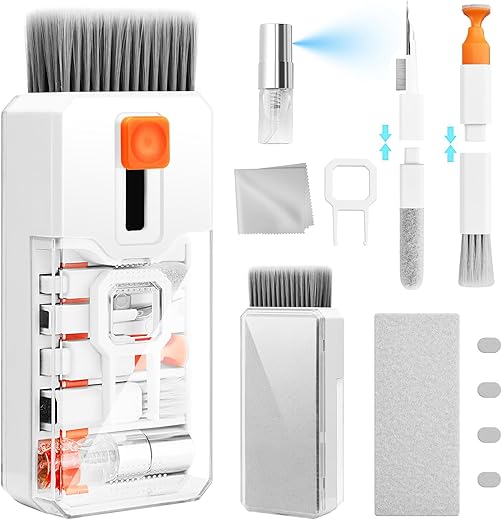
We’ll need:
Step 1: Power Down and Prepare
Why shutting down is the secret step most skip — and why it keeps our laptop safe.Shut down the laptop using the operating system menu or hold the power button until it powers off.
Unplug the charger and disconnect all peripherals—mouse, USB drives, external hard drives, and HDMI cables.
Remove a removable battery if our model allows; for example, slide the latch on older laptops or consult the manual for battery-release steps.
Keep in mind many ultrabooks have sealed batteries—do not force removal.
Pick a well-lit, clean workspace like a kitchen table near a window.
Lay a soft towel or microfiber cloth over the table and open the laptop flat on it to protect the screen and base.
This preparation prevents electrical damage and keeps loose crumbs and dust from falling into ports while we clean.
Step 2: Remove Loose Debris
Think of it as sweeping before mopping — tiny crumbs can wreck our keys.Tilt the laptop gently at a 75–90° angle (not fully vertical) so crumbs can fall away. Place the hinge against the towel edge for stability.
Use short bursts of compressed air in a zig-zag pattern across the keyboard to dislodge debris. Move left to right, front to back, and keep the can upright.
If we lack canned air, grab a soft brush (paintbrush or makeup brush) or a small handheld blower and sweep crumbs out—like clearing crumbs after a quick lunch at our desk.
Avoid excessive force and do not spray liquids into the keys. Tap the laptop lightly every few bursts to encourage particles to fall.
Recommended tools:
Collect debris on the towel as we work.
Step 3: Wipe Key Tops and Crevices
Micro-surgery for our keyboard — tiny tools, big results.Dampen a microfiber cloth or cotton swab with isopropyl alcohol (70%+), wringing it so it is not dripping.
Wipe key tops and surrounding surfaces with gentle, circular strokes to lift oils and fingerprints.
Run a slightly moistened swab between keys and along key edges to dissolve stubborn grease — for example, the film that builds up after eating at our desk.
Use a toothpick or soft plastic tool to peer into crevices and carefully tease out sticky deposits, working slowly to avoid prying keys loose.
Avoid letting any liquid seep under keys; if a key feels wet, blot it immediately with a dry cloth.
Step 4: Deep-Clean Sticky or Gummed Keys
Stubborn keys don't stand a chance — we can fix sticky without replacing parts.Consult our manual to confirm whether individual keycaps are removable.
Photograph the keyboard layout so we can restore keys exactly (spacebar, Shift, Enter placement).
Gently pry off removable caps with a plastic tool, lifting straight up — avoid metal tools that scratch.
Clean beneath each cap with an alcohol-dampened cotton swab (70%+ isopropyl); focus on rails and stabilizers where gunk hides.
Let each cleaned part air-dry completely before reassembly.
Re-seat keycaps by aligning stems and pressing down until they click back into place.
Avoid forced removal on low-profile blade keys (e.g., many MacBooks); instead, swab thoroughly between and around keys until the stickiness lifts.
Step 5: Clean the Trackpad Safely
A smoother glide in minutes — restore precision and banish fingerprints.Use a lightly damp microfiber cloth moistened with 70% isopropyl alcohol or a dedicated electronics cleaner, and wipe the trackpad in gentle circular motions — we keep pressure light to protect the surface.
Avoid letting liquid pool in seams or edges — we wring the cloth well and work from the center outward to prevent seepage.
Make a second pass with a fresh damp cloth for greasy residue (coffee or hand cream); we spot-test on a corner first if unsure.
Finish with a dry microfiber wipe to remove streaks and restore responsiveness.
Try a quick real-life check: after a long meeting we wiped a laptop and it immediately regained smooth tracking.
Step 6: Final Drying, Reassembly, and Test
The finishing touches — ensure dryness, test everything, and celebrate a job well done.Let the laptop air-dry for at least 10–15 minutes in a dust-free spot (a clean desk or shelf away from direct sunlight).
Reinsert the battery and reconnect any peripherals and power cable.
Power on and run a quick key sweep: press every key, including Shift, Ctrl, Alt, Fn, and function keys, to confirm responsiveness.
Test the trackpad by moving the cursor, tapping, and using two-finger scroll and pinch gestures to confirm smooth tracking.
Adopt a short routine to keep our workspace tidy:
If a key or the trackpad still misbehaves, power down and repeat the deep-clean steps or consult a technician.
We’re Done — Keep It Clean
We’ve restored our laptop’s feel and precision with these six steps; a little routine care keeps our gear reliable and pleasant. Give it a try, share your results with us, and commit to a simple cleaning habit starting today now.